

If your Jira Data Center authenticates against Active Directory, your groups are more than a list of names. They carry project roles, permission schemes and admin rights. Before you move to Jira Cloud, you need to know exactly what the Jira Cloud Migration Assistant (JCMA) does with them.
Most teams we work with ask the same questions: Do my AD groups survive the move? Do local Jira groups behave differently? What happens if a group with the same name already exists in Cloud? And who is admin on day one? This guide answers those questions, based on Atlassian's official migration documentation, and gives you a checklist you can use in your next migration.
Key highlights
- JCMA migrates local and AD/LDAP groups the same way: as normal, locally managed Atlassian groups with their members.
- There is no AD connection in Cloud. If you want central identity management, use an identity provider with SCIM.
- Duplicate or invalid email addresses block the migration. Fix them in Assess and prepare your users.
- A group name that already exists in Cloud gets the DC members added. Resolve name conflicts first to avoid permission escalation.
- Blocklisted admin groups are not migrated. Their users are, but admin rights must be reassigned manually.
How JCMA treats AD and local groups
In Jira Data Center, groups usually come from two places: groups synchronized from Active Directory through an LDAP user directory, and local groups in the internal Jira directory. JCMA does not distinguish between the two when it moves them. Both arrive in Cloud as normal, locally managed Atlassian groups, together with their members.
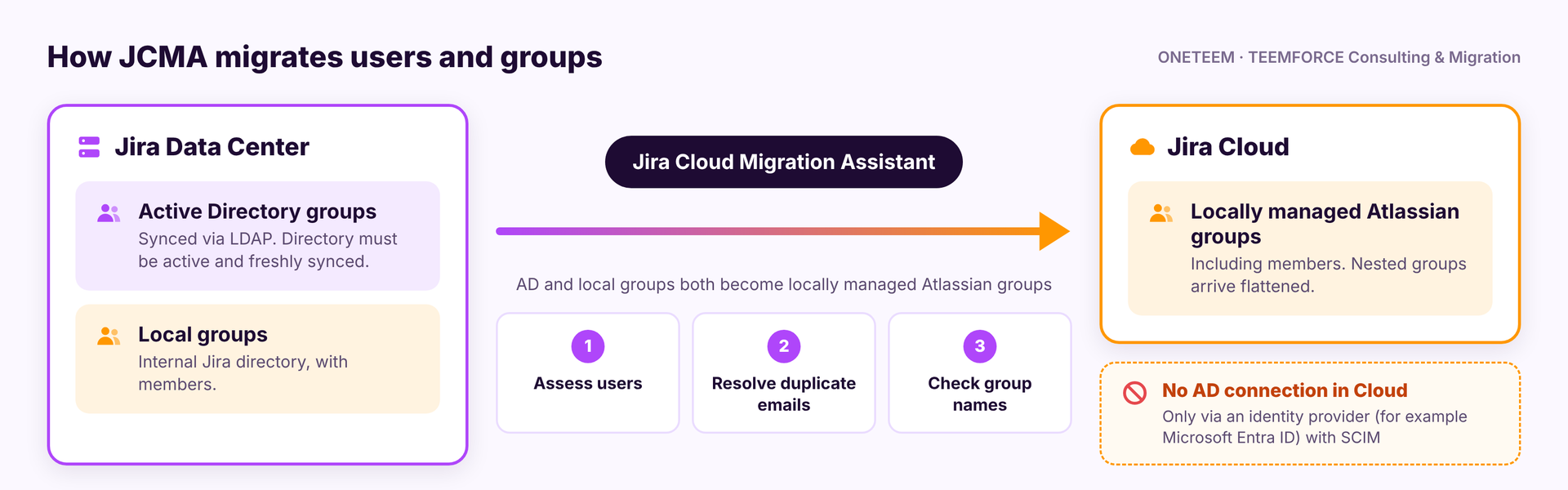
That has one important consequence: the link to Active Directory ends with the migration. Jira Cloud has no LDAP or AD connection. After the move, you maintain the groups directly in Cloud, or you connect an identity provider such as Microsoft Entra ID and provision users and groups with SCIM.
⚠ Warning
Read more: https://support.atlassian.com/migration/docs/migrate-users-and-groups/
Nested groups are flattened
Atlassian Cloud does not support nested groups. If your AD uses groups inside groups, JCMA migrates them flattened: every group becomes a separate group on the same level, and users are added to each group individually instead of inheriting membership. You can keep the nested structure in your external directory and use the flattened version in Cloud.
Read more: https://support.atlassian.com/migration/docs/prepare-nested-groups-for-cloud-migration/
Your migration options
JCMA gives you two ways to move users and groups. You can migrate them in advance, in a separate run before any project data, or include them in a data migration plan.
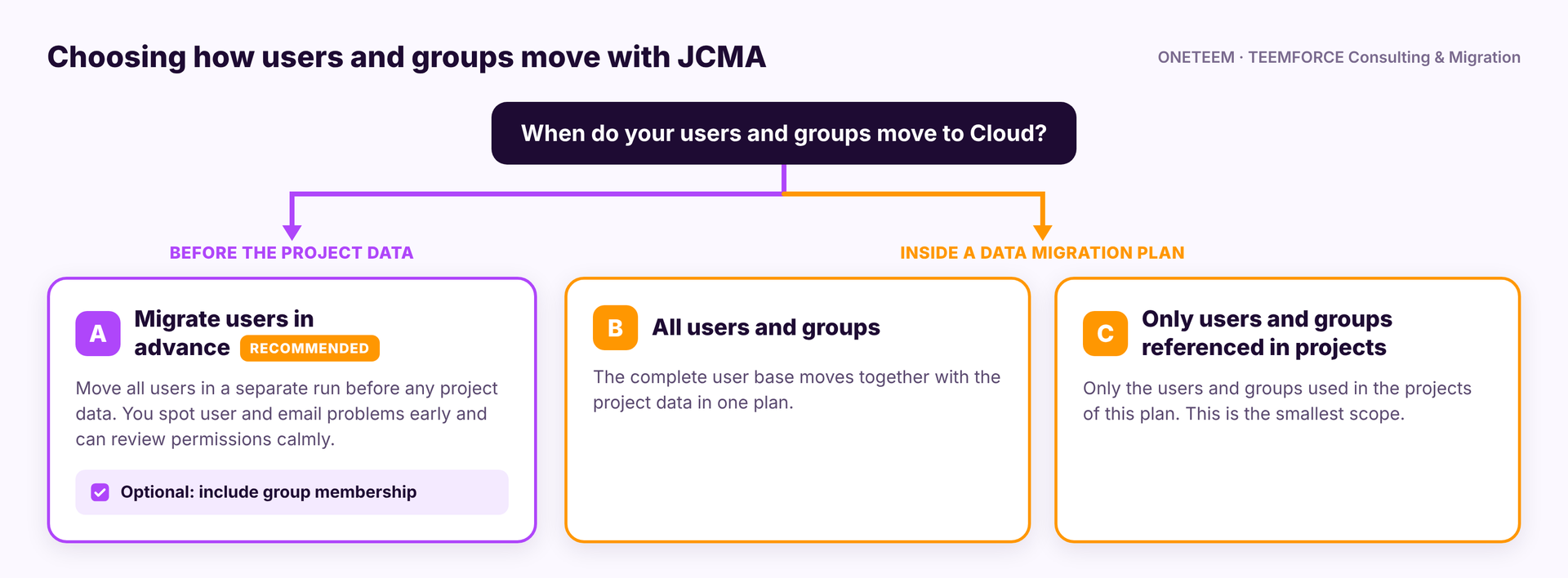
- A. Migrate users in advance (recommended). All users move first, before any project data. You can optionally include group membership with a checkbox. Problems with users and emails surface early, and you can review permissions without time pressure.
- B. All users and groups. Inside a data migration plan, the complete user base moves together with the project data.
- C. Only users and groups referenced in projects. Inside a data migration plan, only the users and groups referenced in the project data you migrate in that plan. This is the smallest scope.
★ Tip
Read more: https://support.atlassian.com/migration/docs/migrate-users-and-groups/
Before you start: checklist
Use this list before your first test migration and again before production. Each point maps to a section of this guide.
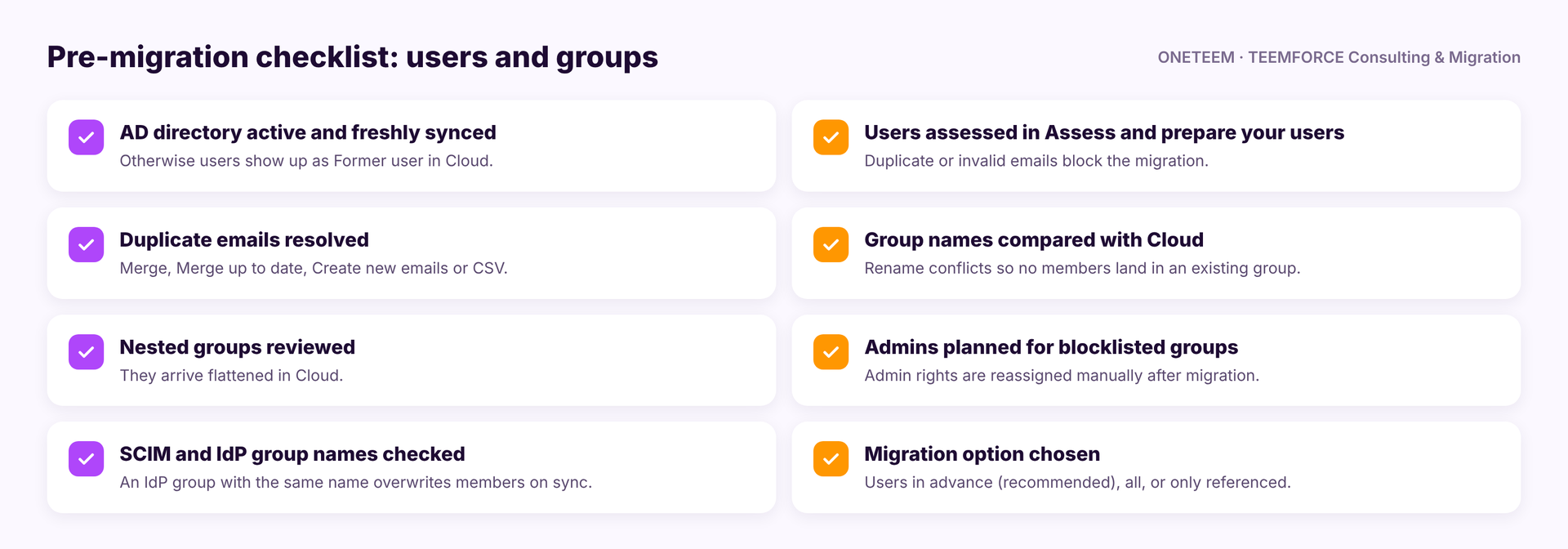
- AD directory in Jira DC is active and freshly synced.
- Users assessed in Assess and prepare your users.
- Duplicate and invalid email addresses resolved.
- DC group names compared with existing Cloud groups, conflicts renamed.
- Nested groups reviewed, flattened structure accepted.
- Plan ready for admins in blocklisted groups.
- SCIM and identity provider group names checked against migrated groups.
- Migration option chosen: users in advance, all users and groups, or only referenced ones.
Duplicate emails
In Cloud, the email address identifies a user. That is why duplicate or invalid email addresses in your DC user base block the migration. In AD environments this happens more often than you might expect, for example with service accounts, shared mailboxes or old accounts that were never cleaned up.
You resolve these issues in JCMA under Assess and prepare your users. The options are:
- Merge (
Merge duplicated users): users who share an email address become a single account in Cloud. - Merge up to a date (Jira only): users who last logged in before a chosen date, or never, are merged. Users who logged in after that date get pre-generated email addresses and migrate as individual users.
- Create new emails: affected users get pre-generated, valid and unique addresses. Their identity and history are preserved, but they cannot log in with these addresses.
- CSV (Jira only): apply fixes per user in a more granular way.
★ Tip
⚠ Warning
Read more: https://support.atlassian.com/migration/docs/fix-duplicated-email-addresses/
Group name conflicts and permission escalation
This is the point that surprises most teams. If a group with the same name already exists in your Cloud site, JCMA does not create a second group and does not replace the existing one. It adds the DC members to the existing Cloud group. Those users then get every permission that Cloud group already has.
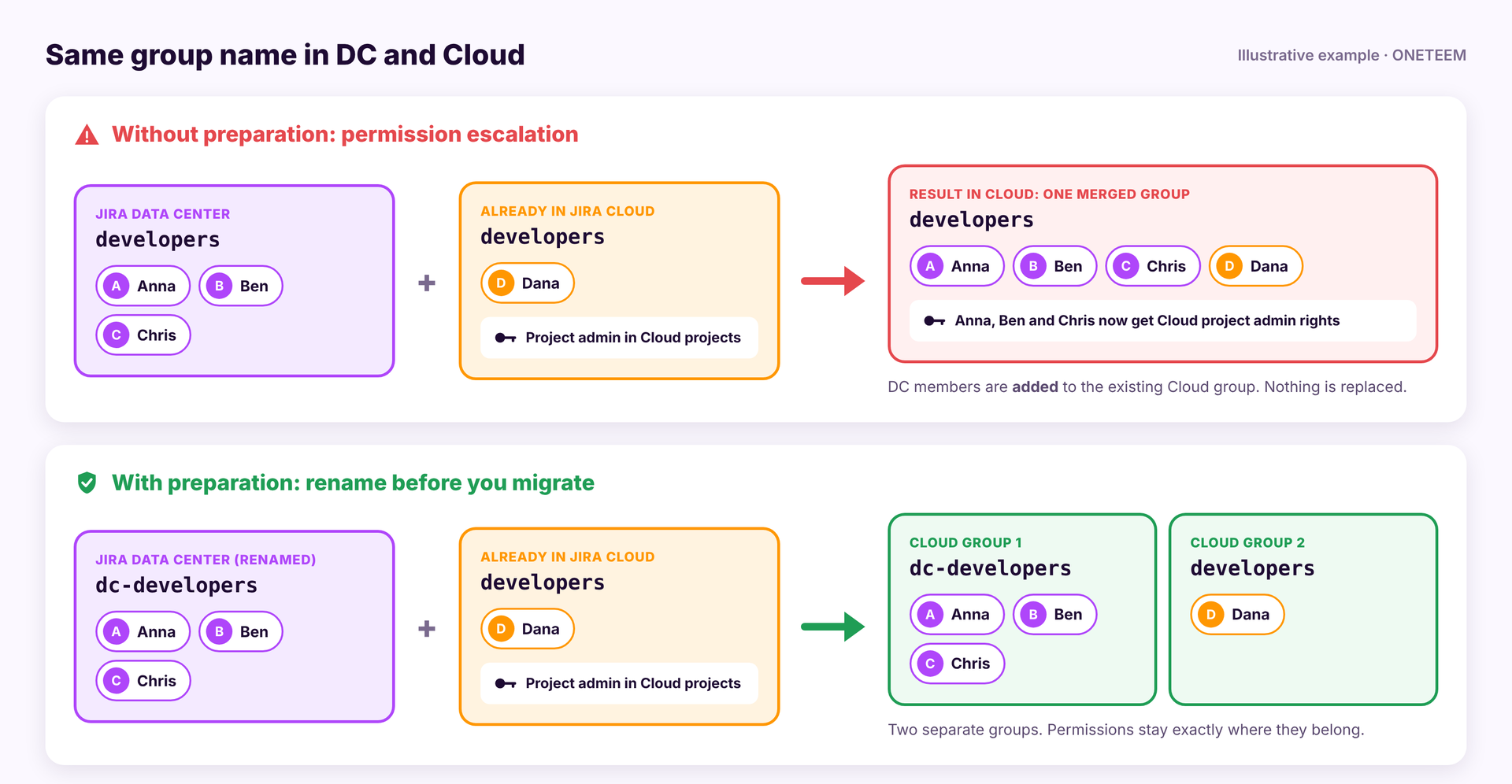
⚠ Warning
Admin groups and the blocklist
To prevent permission escalation, some admin groups are on a blocklist and are not migrated at all:
site-admins system-administrators org-admins atlassian-addons atlassian-addons-admin
The users in these groups are still migrated, but they arrive without their admin rights. Plan who should be an admin in Cloud and reassign those rights manually in admin.atlassian.com after the migration.
jira-administrators is different: it is migrated together with its users. You only need to approve its admin access after the migration.
ⓘ Note
Read more: https://support.atlassian.com/migration/docs/reassign-admins-to-blocklisted-admin-groups/
SCIM and identity providers after migration
Because Cloud has no AD connection, many organizations connect an identity provider and provision users and groups with SCIM. SCIM can stay switched on during and after the migration. There is one rule to remember: if your identity provider syncs a group with the same name as a migrated group, the next sync overwrites the members of that group.
★ Tip
Read more: https://support.atlassian.com/migration/docs/recommendations-for-scim-provisioning/
Example migration
EXAMPLE
The following scenario is illustrative. The numbers are fictional and only show how the steps fit together. A mid-sized Jira Data Center with AD integration has 1,200 users, 85 groups (60 from AD, 25 local), 14 duplicate email addresses, and 2 groups that already exist in Cloud: jira-administrators and developers.
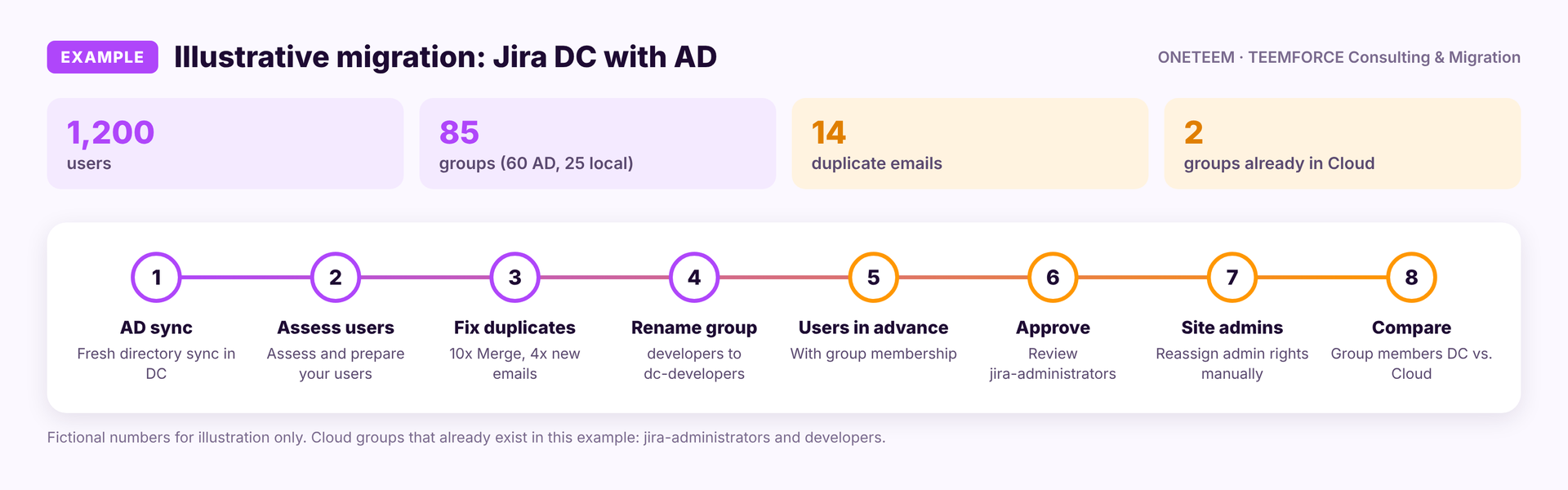
- AD sync. Run a fresh sync of the AD directory in Jira DC.
- Assess users. Open Assess and prepare your users in JCMA.
- Fix duplicates. 10 duplicates are merged, 4 users get new email addresses.
- Rename group.
developersbecomesdc-developersin DC to avoid the conflict. - Users in advance. Migrate all users first, including group membership.
- Approve. Review and approve
jira-administrators. - Site admins. Reassign admin rights for blocklisted groups manually.
- Compare. Compare group members in DC and Cloud before the data migration.
Conclusion
Moving from Jira Data Center with Active Directory to Jira Cloud is not complicated, but it is unforgiving. JCMA brings your AD and local groups across as locally managed Atlassian groups, and the AD connection ends there. The real work is the preparation: a fresh AD sync, clean email addresses, no group name conflicts, a plan for admins, and a clear decision about SCIM. Do these right, and your users log in to Cloud with exactly the access they should have, no more and no less.
Sources
All facts in this article are based on Atlassian's official migration documentation:
- Migrate users and groups
https://support.atlassian.com/migration/docs/migrate-users-and-groups/ - Fix duplicated email addresses
https://support.atlassian.com/migration/docs/fix-duplicated-email-addresses/ - Resolve duplicate group names to avoid permission escalation
https://support.atlassian.com/migration/docs/resolve-duplicate-group-names-to-avoid-permission-escalation/ - Reassign admins to blocklisted admin groups
https://support.atlassian.com/migration/docs/reassign-admins-to-blocklisted-admin-groups/ - Recommendations for SCIM provisioning
https://support.atlassian.com/migration/docs/recommendations-for-scim-provisioning/ - Prepare nested groups for cloud migration
https://support.atlassian.com/migration/docs/prepare-nested-groups-for-cloud-migration/

Planning your move from Jira Data Center to Cloud?
ONETEEM TEEMFORCE Consulting & Migration helps you prepare users, groups and permissions, run test migrations and go live with confidence. ONETEEM is an Atlassian Marketplace Partner.
Let's talkIf your Jira Data Center authenticates against Active Directory, your groups are more than a list of names. They carry project roles, permission schemes and admin rights. Before you move to Jira Cloud, you need to know exactly what the Jira Cloud Migration Assistant (JCMA) does with them.
Most teams we work with ask the same questions: Do my AD groups survive the move? Do local Jira groups behave differently? What happens if a group with the same name already exists in Cloud? And who is admin on day one? This guide answers those questions, based on Atlassian's official migration documentation, and gives you a checklist you can use in your next migration.
Key highlights
- JCMA migrates local and AD/LDAP groups the same way: as normal, locally managed Atlassian groups with their members.
- There is no AD connection in Cloud. If you want central identity management, use an identity provider with SCIM.
- Duplicate or invalid email addresses block the migration. Fix them in Assess and prepare your users.
- A group name that already exists in Cloud gets the DC members added. Resolve name conflicts first to avoid permission escalation.
- Blocklisted admin groups are not migrated. Their users are, but admin rights must be reassigned manually.
How JCMA treats AD and local groups
In Jira Data Center, groups usually come from two places: groups synchronized from Active Directory through an LDAP user directory, and local groups in the internal Jira directory. JCMA does not distinguish between the two when it moves them. Both arrive in Cloud as normal, locally managed Atlassian groups, together with their members.
That has one important consequence: the link to Active Directory ends with the migration. Jira Cloud has no LDAP or AD connection. After the move, you maintain the groups directly in Cloud, or you connect an identity provider such as Microsoft Entra ID and provision users and groups with SCIM.
⚠ Warning
Read more: https://support.atlassian.com/migration/docs/migrate-users-and-groups/
Nested groups are flattened
Atlassian Cloud does not support nested groups. If your AD uses groups inside groups, JCMA migrates them flattened: every group becomes a separate group on the same level, and users are added to each group individually instead of inheriting membership. You can keep the nested structure in your external directory and use the flattened version in Cloud.
Read more: https://support.atlassian.com/migration/docs/prepare-nested-groups-for-cloud-migration/
Your migration options
JCMA gives you two ways to move users and groups. You can migrate them in advance, in a separate run before any project data, or include them in a data migration plan.
- A. Migrate users in advance (recommended). All users move first, before any project data. You can optionally include group membership with a checkbox. Problems with users and emails surface early, and you can review permissions without time pressure.
- B. All users and groups. Inside a data migration plan, the complete user base moves together with the project data.
- C. Only users and groups referenced in projects. Inside a data migration plan, only the users and groups referenced in the project data you migrate in that plan. This is the smallest scope.
★ Tip
Read more: https://support.atlassian.com/migration/docs/migrate-users-and-groups/
Before you start: checklist
Use this list before your first test migration and again before production. Each point maps to a section of this guide.
- AD directory in Jira DC is active and freshly synced.
- Users assessed in Assess and prepare your users.
- Duplicate and invalid email addresses resolved.
- DC group names compared with existing Cloud groups, conflicts renamed.
- Nested groups reviewed, flattened structure accepted.
- Plan ready for admins in blocklisted groups.
- SCIM and identity provider group names checked against migrated groups.
- Migration option chosen: users in advance, all users and groups, or only referenced ones.
Duplicate emails
In Cloud, the email address identifies a user. That is why duplicate or invalid email addresses in your DC user base block the migration. In AD environments this happens more often than you might expect, for example with service accounts, shared mailboxes or old accounts that were never cleaned up.
You resolve these issues in JCMA under Assess and prepare your users. The options are:
- Merge (
Merge duplicated users): users who share an email address become a single account in Cloud. - Merge up to a date (Jira only): users who last logged in before a chosen date, or never, are merged. Users who logged in after that date get pre-generated email addresses and migrate as individual users.
- Create new emails: affected users get pre-generated, valid and unique addresses. Their identity and history are preserved, but they cannot log in with these addresses.
- CSV (Jira only): apply fixes per user in a more granular way.
★ Tip
⚠ Warning
Read more: https://support.atlassian.com/migration/docs/fix-duplicated-email-addresses/
Group name conflicts and permission escalation
This is the point that surprises most teams. If a group with the same name already exists in your Cloud site, JCMA does not create a second group and does not replace the existing one. It adds the DC members to the existing Cloud group. Those users then get every permission that Cloud group already has.
⚠ Warning
Admin groups and the blocklist
To prevent permission escalation, some admin groups are on a blocklist and are not migrated at all:
site-admins system-administrators org-admins atlassian-addons atlassian-addons-admin
The users in these groups are still migrated, but they arrive without their admin rights. Plan who should be an admin in Cloud and reassign those rights manually in admin.atlassian.com after the migration.
jira-administrators is different: it is migrated together with its users. You only need to approve its admin access after the migration.
ⓘ Note
Read more: https://support.atlassian.com/migration/docs/reassign-admins-to-blocklisted-admin-groups/
SCIM and identity providers after migration
Because Cloud has no AD connection, many organizations connect an identity provider and provision users and groups with SCIM. SCIM can stay switched on during and after the migration. There is one rule to remember: if your identity provider syncs a group with the same name as a migrated group, the next sync overwrites the members of that group.
★ Tip
Read more: https://support.atlassian.com/migration/docs/recommendations-for-scim-provisioning/
Example migration
EXAMPLE
The following scenario is illustrative. The numbers are fictional and only show how the steps fit together. A mid-sized Jira Data Center with AD integration has 1,200 users, 85 groups (60 from AD, 25 local), 14 duplicate email addresses, and 2 groups that already exist in Cloud: jira-administrators and developers.
- AD sync. Run a fresh sync of the AD directory in Jira DC.
- Assess users. Open Assess and prepare your users in JCMA.
- Fix duplicates. 10 duplicates are merged, 4 users get new email addresses.
- Rename group.
developersbecomesdc-developersin DC to avoid the conflict. - Users in advance. Migrate all users first, including group membership.
- Approve. Review and approve
jira-administrators. - Site admins. Reassign admin rights for blocklisted groups manually.
- Compare. Compare group members in DC and Cloud before the data migration.
Conclusion
Moving from Jira Data Center with Active Directory to Jira Cloud is not complicated, but it is unforgiving. JCMA brings your AD and local groups across as locally managed Atlassian groups, and the AD connection ends there. The real work is the preparation: a fresh AD sync, clean email addresses, no group name conflicts, a plan for admins, and a clear decision about SCIM. Do these right, and your users log in to Cloud with exactly the access they should have, no more and no less.
Sources
All facts in this article are based on Atlassian's official migration documentation:
- Migrate users and groups
https://support.atlassian.com/migration/docs/migrate-users-and-groups/ - Fix duplicated email addresses
https://support.atlassian.com/migration/docs/fix-duplicated-email-addresses/ - Resolve duplicate group names to avoid permission escalation
https://support.atlassian.com/migration/docs/resolve-duplicate-group-names-to-avoid-permission-escalation/ - Reassign admins to blocklisted admin groups
https://support.atlassian.com/migration/docs/reassign-admins-to-blocklisted-admin-groups/ - Recommendations for SCIM provisioning
https://support.atlassian.com/migration/docs/recommendations-for-scim-provisioning/ - Prepare nested groups for cloud migration
https://support.atlassian.com/migration/docs/prepare-nested-groups-for-cloud-migration/
Planning your move from Jira Data Center to Cloud?
ONETEEM TEEMFORCE Consulting & Migration helps you prepare users, groups and permissions, run test migrations and go live with confidence. ONETEEM is an Atlassian Marketplace Partner.
Let's talk